

Vault and files
Use your LinkinLegal Vault files in a chat, and share other files with the assistant.
The assistant can work from more than the open document. You can point it at files in your Vault, or upload files to a chat.
Vault
The Vault tab shows your LinkinLegal folders and files.
- Open the Vault tab.
- Find a file. Open the folders, or use Search files and folders.
- Tick the files and folders you want the assistant to use.
- Click Use in Chat.
Your choices show as chips above the message box. Click the x on a chip to remove it. Click Clear Selection in the Vault tab to remove them all.
The assistant searches only the Vault files and folders you selected.
You can also:
- Click New folder to add a folder, or New subfolder inside one.
- Click Delete folder to delete a folder.
- Click Open file to open a file in your browser.
- See where a file came from. A file saved from an email shows the sender, subject and date.
Save the open document
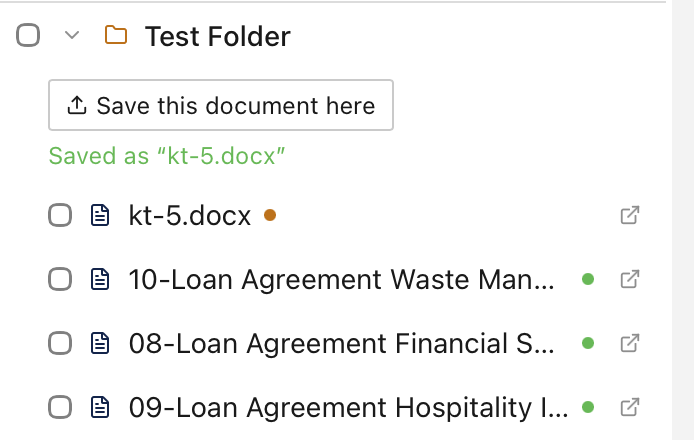
Open a folder and click Save this document here. A copy of the open Word document goes into that folder, and the folder shows Saved as with the file name. If the folder already has a file with that name, the copy is saved as Name (1).docx.
Upload to a chat
There are two ways to add a file to a chat:
- Click Upload files in the message box.
- Drag the file onto the pane.
You can upload images, PDF, Word and Excel files, and plain-text formats such as TXT, CSV and HTML.
Each file shows above the message box. Click Remove from list to take it off.
Files
The Files tab lists the files you shared with the assistant, and any copies it pulled from your document for reference. Each row shows the file size, the date, and whether the file is an upload or generated.
Hold the pointer over a row to see its buttons:
- Preview shows an image.
- Download file saves the file.
- Delete file removes the file.
Click Refresh files to update the list.