

Get started
Open the LinkinLegal add-in in Word, sign in, and start a chat.
This page takes you from an open Word document to your first chat.
Open the pane
In Word, open the LinkinLegal tab on the ribbon. Click the LinkinLegal button. The pane opens beside your document.

Sign in
Click Sign in and continue with your LinkinLegal account. If you do not have an account, click Sign Up.
Choose a mode
A new chat shows Pick a mode, then type below to start. Choose Redline, Review or Draft. The mode is fixed once the chat starts.
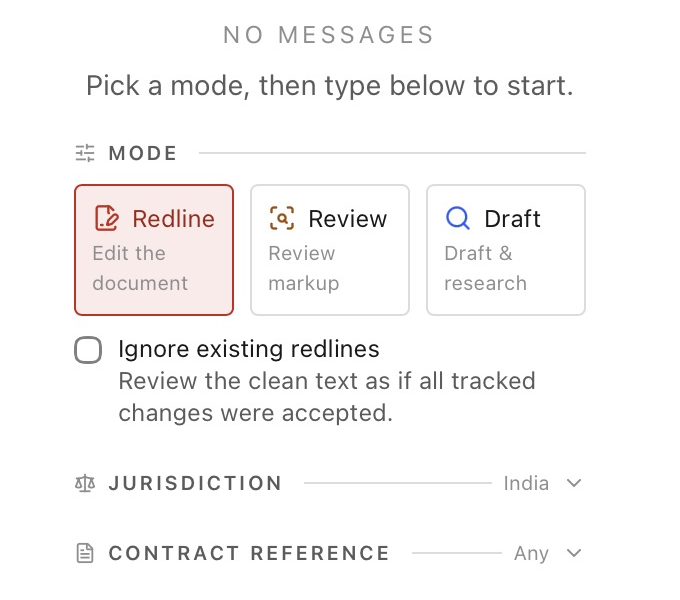
Set the scope
Open these two sections if you want the assistant to use LinkinLegal's reference material:
- Jurisdiction: choose a country, then its central law, states and institutions. The pane fills in your country when it can detect it.
- Contract reference: search for contract categories and tick the ones you want.
Both sections are optional. You set them when the chat starts.
Send your message
Type in the message box and press Enter, or click Send message. For example:
We act for the Customer. List the top five risks in this agreement.
Work in a chat
The bar above the message box shows the text you have selected in Word. The assistant sees that selection too, so you can ask about it. The bar also has buttons that act on the selection. See Act on selected text.
If the assistant needs an answer before it goes on, it shows a Question card with two to four options and an Other field. For example, in Redline and Review it asks Which party do you act for? once per chat if you have not said. Click an option, or type your own answer. The chat waits until you answer.
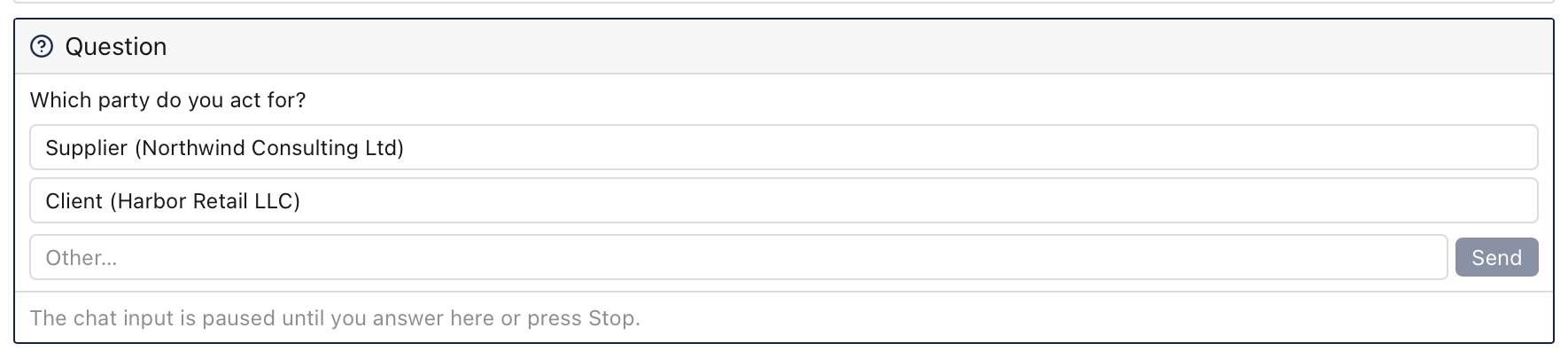
While the assistant works, the Send button becomes Stop. Click it to end the turn. A Question card that was waiting then shows Not answered.
Each answer has these buttons:
| Button | What it does |
|---|---|
| Copy | Copies the answer |
| Insert at cursor | Puts the answer at the cursor in your document |
| Insert at end | Puts the answer at the end of your document |
| Continue | Asks the assistant to continue |
| Regenerate | Discards the answer and writes a new one |
To change a message you sent, edit it in the chat. To keep a message for later, click Save under it. See the next section.
Use a saved prompt
Type / at the start of the message box. A list opens with two groups:
- My prompts are the ones you saved. Save one with the Save button under a message you sent, or in Settings.
- Starter prompts come from LinkinLegal.
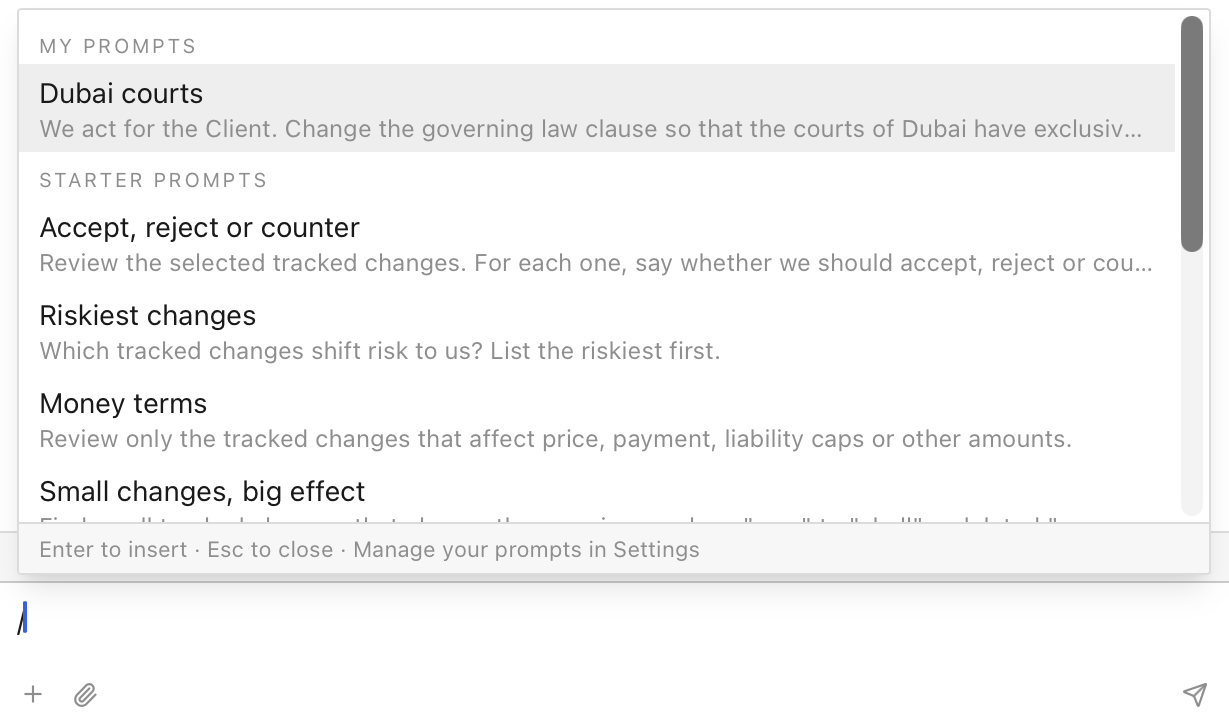
Pick a prompt to put its text in the message box. You can change the text before you send it.
A new chat also shows a few starter buttons, such as Summarize redlines, Address comments and Extract key terms. Each one sends a ready-made message. See Key terms for the last one.
Manage your chats
Click the chat name at the top of the pane to open the chat menu.
- New Chat starts a new chat.
- Click a chat in the list to go back to it.
- Delete Current Session deletes the open chat.
The ≡ button at the top left opens the other screens: Playbooks, Vault, Files, Tools and Settings. On those screens, click Chat at the top to come back.
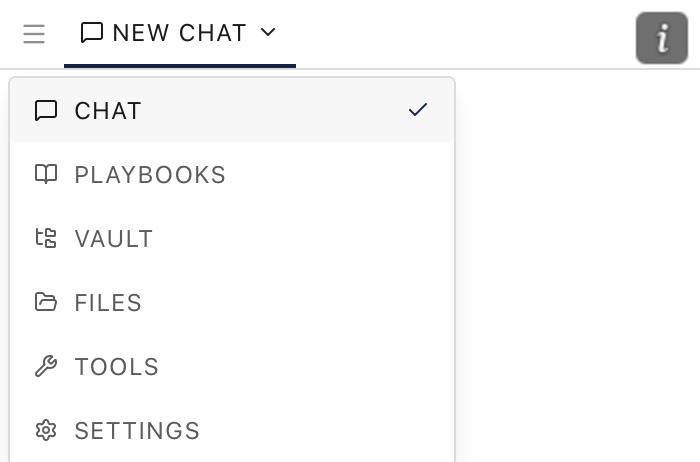 If you prefer a row of tabs, change Navigation in Settings.
Chats are saved for each document. To save a chat as a Word file, click Export chat as Word at the top right.