

Playbooks
Save your firm's positions as rules, then check any contract against them.
A playbook is a set of saved rules, such as your firm's position on a liability cap. You run a playbook on the open document. You get one finding per rule.
To go through the other side's tracked changes one by one, use Review mode. See Review or playbook.
Find a playbook
Open the Playbooks tab. It has two lists:
- My playbooks holds the playbooks you made.
- Community holds playbooks that other LinkinLegal users shared.
Community has two groups. From LinkinLegal holds the starter playbooks LinkinLegal maintains, for common agreement types in the UAE and the UK. Each one shows a LinkinLegal check mark. From the community holds playbooks shared by other users.
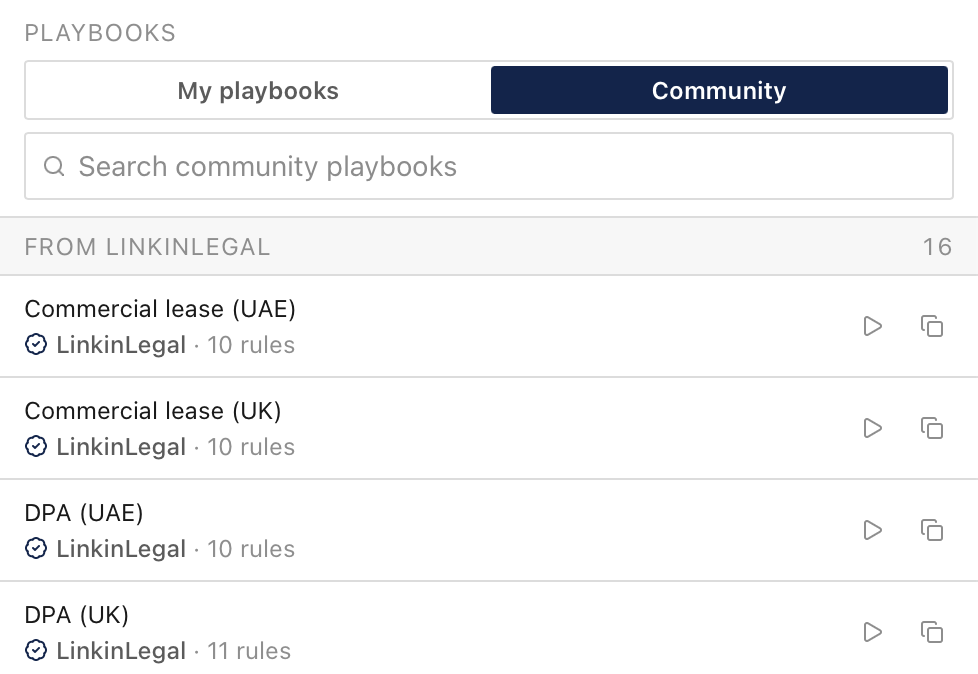
To use a Community playbook, you can run it as it is. To change it, click Save a copy and confirm. The copy goes to My playbooks.
Create a playbook
Click New playbook, then choose one of these:
- Build your own: enter a Name and an Agreement type, then add rules yourself.
- From this document: the assistant writes rules from the open document. Enter a Name and an Agreement type, and optionally the Party represented and any Additional context. Then click Generate.
Generating rules can take a few minutes. The rules appear in the playbook when they are ready. If generation fails, you can try again.
Write a rule
Click Add review rule, or open a rule to edit it.
| Field | What it means |
|---|---|
| Rule name | A short name, such as "Limitation of liability cap" |
| Instructions for preferred position | The position you want |
| Comment for preferred position | An optional note for this position |
| Fallback position | What you can accept if the preferred position is not met |
| Fallback comment | An optional note for the fallback |
| Response type | Redline or Red Flag |
| Guidance notes | Extra notes for the review |
| Preferred language | The exact wording to use. The assistant uses it word for word |
| Rule is active | Turns the rule on or off |
The response type sets what happens when a document misses the rule:
- Redline: the assistant also suggests an edit.
- Red Flag: the assistant explains the problem and shows where it is. It does not suggest an edit.
Run a playbook
- Open the document in Word.
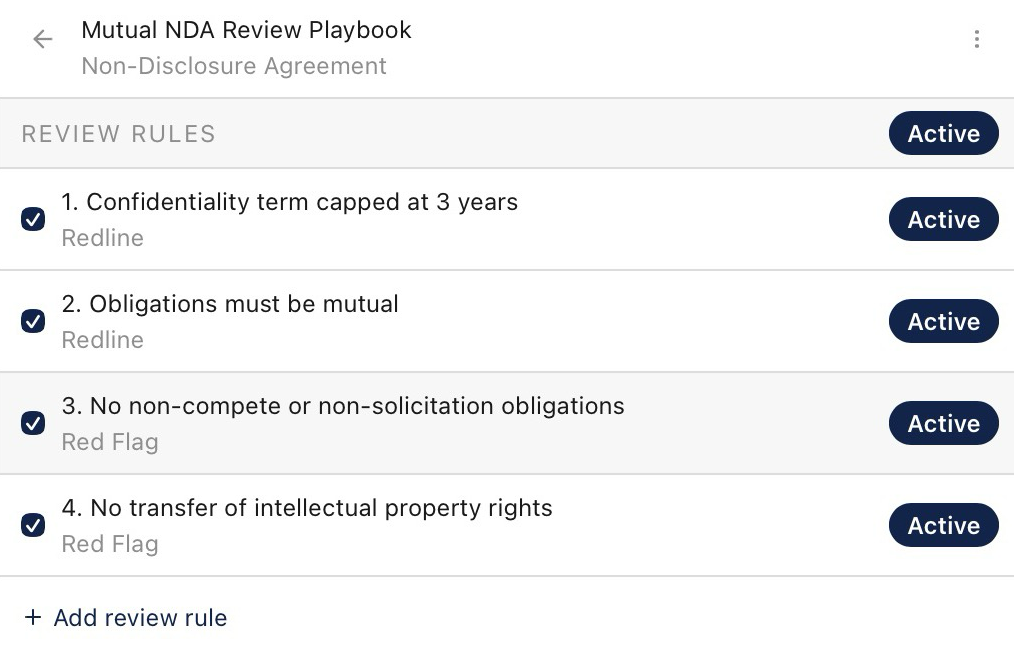
- Open the playbook in the Playbooks tab.
- Untick any rules you want to skip for this run. This does not change the playbook.
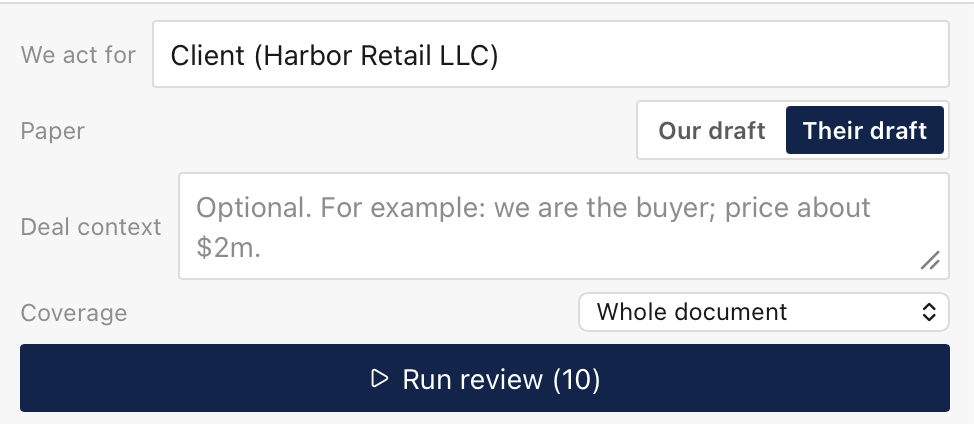
- Under Coverage, choose Whole document or Counterparty changes only.
- Fill in the review context. All three fields are optional, but We act for makes the findings much more useful:
- We act for: the party you represent. The list suggests the parties named in the document.
- Paper: Our draft or Their draft, so the assistant knows whose starting text it is.
- Deal context: anything else the assistant should know, such as "we are the buyer; price about $2m".
- Click Run review.

The add-in opens a new Redline chat for the run. The top of the chat shows a Playbook label.
With Counterparty changes only, the assistant checks only tracked changes. If the document has more than one author, it asks which authors to check.
Read the findings
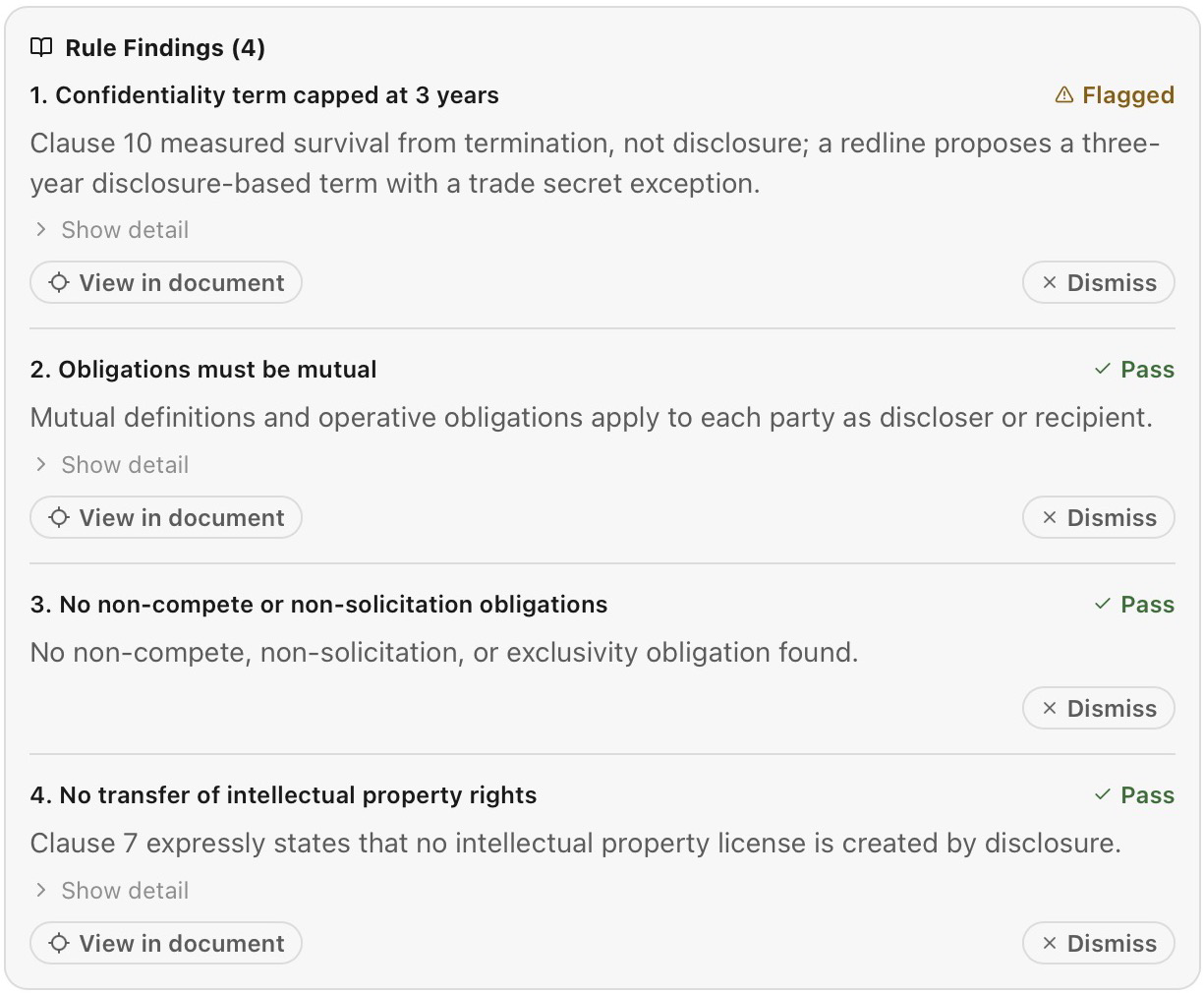
The Rule Findings card has one finding per rule:
| Status | What it means |
|---|---|
| Pass | The document meets the rule |
| Flagged | The document does not meet the rule |
| Not found | The assistant could not find language for this rule |
Click Show detail to read the explanation and the quoted text. Click View in document to go to the paragraph. Click Dismiss to clear a finding.
Edits from a Redline rule appear in a Suggested Redlines card. Nothing changes in Word until you apply them.
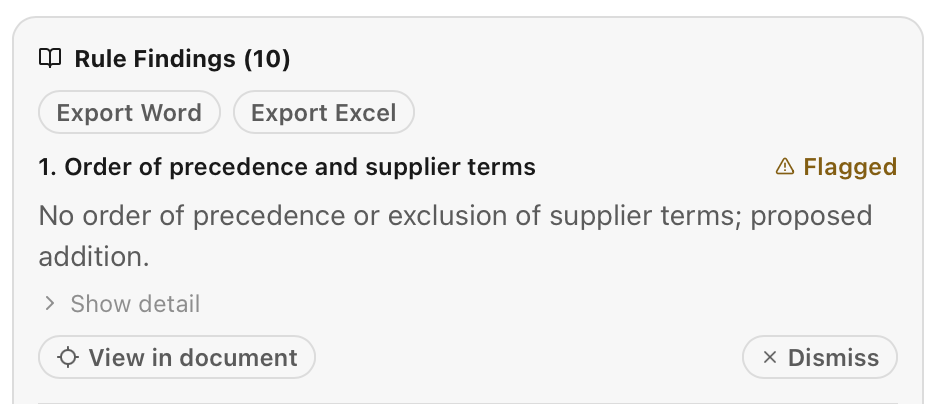
To share the findings, click Export Word or Export Excel at the top of the card. The Word file is a landscape table with one row per rule. The Excel file has the same rows in a sheet.
Manage a playbook
Open Playbook actions in a playbook to rename, duplicate, share or delete it.
To share a playbook, choose how your name is shown and click Share. Every LinkinLegal user can then view, run and save a copy of it.
Check before you share
Rules often contain your firm's negotiation positions. Make sure nothing in the playbook is confidential.
To share, the playbook and at least one rule must be active. To delete a shared playbook, stop sharing it first.