

Redline mode
Ask the assistant to edit your document, then apply each suggestion as a tracked change.
In Redline mode, the assistant reads your document and suggests edits. You decide which edits go in. Applied edits show in Word as tracked changes.
You can also ask questions in this mode, such as "What are the main risks in clause 9?".
Get suggestions
-
Start a new chat and choose Redline.
-
Say who you act for and what you want changed. For example:
We act for the Seller. Tighten the indemnity in clause 8 in our favour.
-
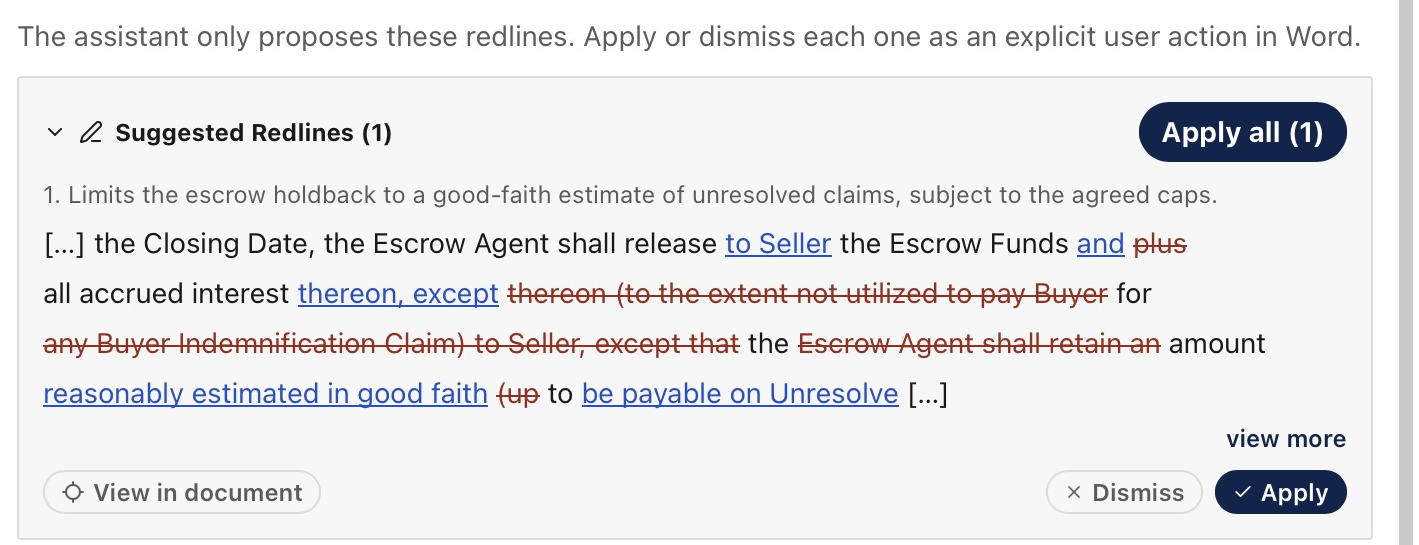
Wait for the Suggested Redlines card.
Each suggestion shows the reason for the edit and the changed words.
Act on a suggestion
| Button | What it does |
|---|---|
| Apply | Puts the edit in Word as a tracked change |
| Dismiss | Drops the suggestion. Word does not change |
| View in document | Takes you to the paragraph in Word |
| Undo | Takes back an applied edit |
| Accept | Finalizes an applied edit, so it is no longer a tracked change |
| Edit | Lets you change the wording before you apply it |
| Rewrite | Asks the assistant for a new wording for that row only |
The card header has Apply all, Undo all and Accept all for the whole card.
Edit or rewrite a suggestion
Click Edit on a row to change the new wording yourself. The row shows the result as you type. Click Save to keep it, or press Escape to cancel. An edited row shows an Edited mark. Apply then puts your wording in Word.
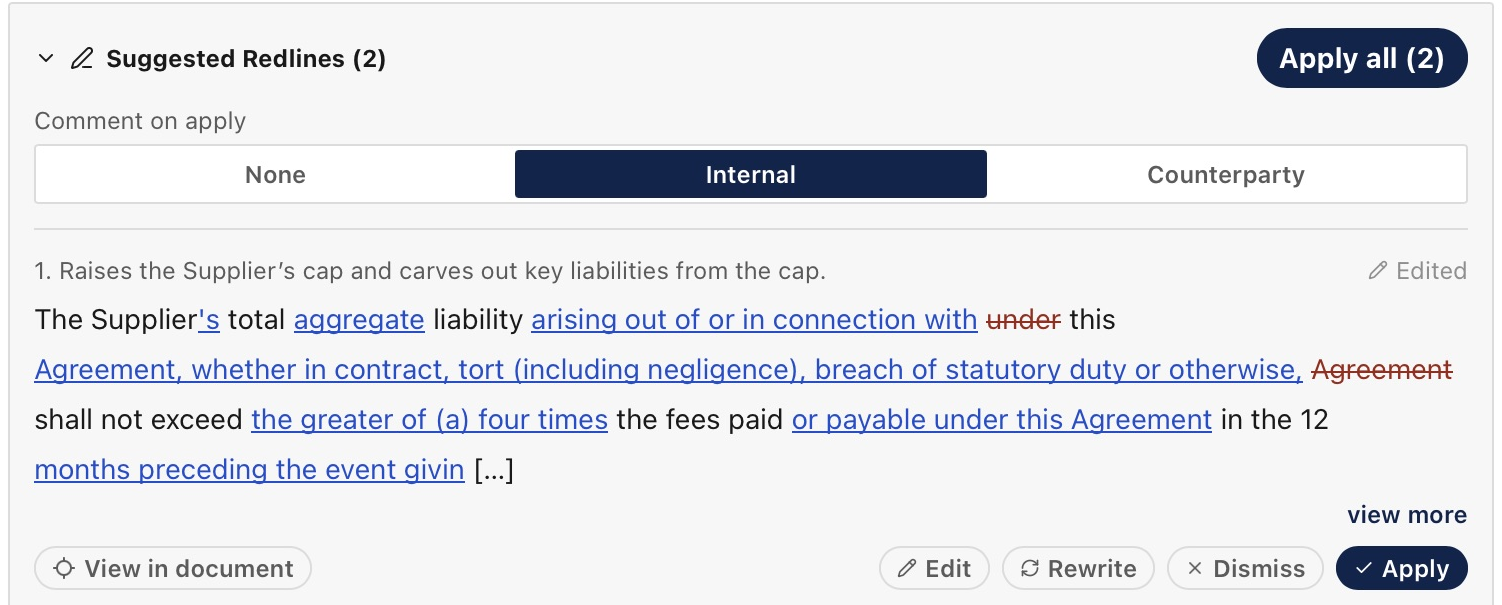
Click Rewrite to have the assistant try again on that row. Say what should change, or leave the box empty for a fresh wording. The assistant answers with a new row, and the old row is marked as superseded. Rewrite waits until the assistant has finished its current answer.
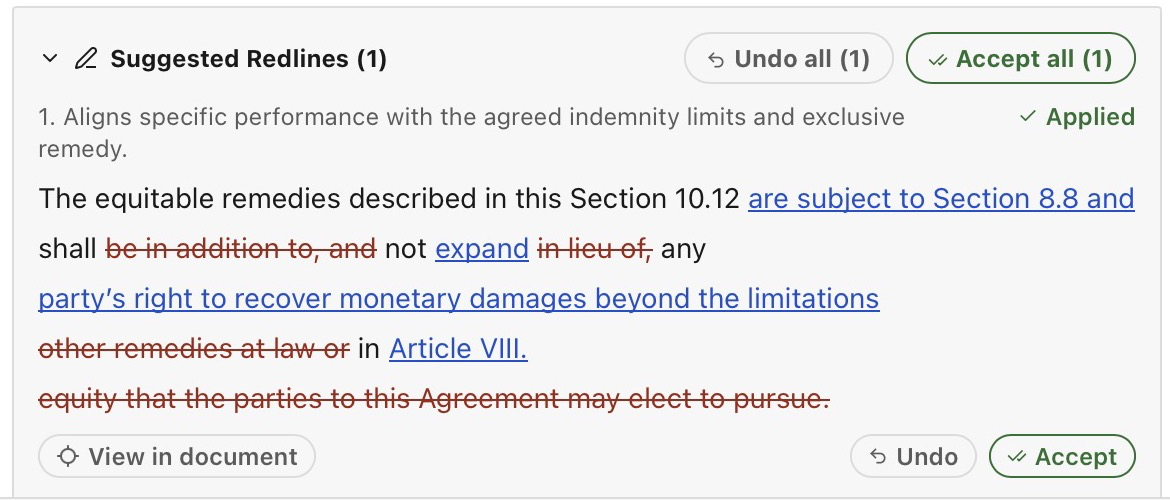
Undo and Accept appear on edits to a paragraph. For other kinds of edit, use Word's own review buttons.
Apply can also add a Word comment. Choose the audience under Comment on apply on the card:
- None adds no comment.
- Internal adds the reason for the edit, with an
[Internal]prefix. To remove these before you share the document, use Remove Internal Comments. - Counterparty adds a neutral comment for the other side. Each row shows the text first.
Undo removes the comment. To set the default, see Settings.
Act on selected text
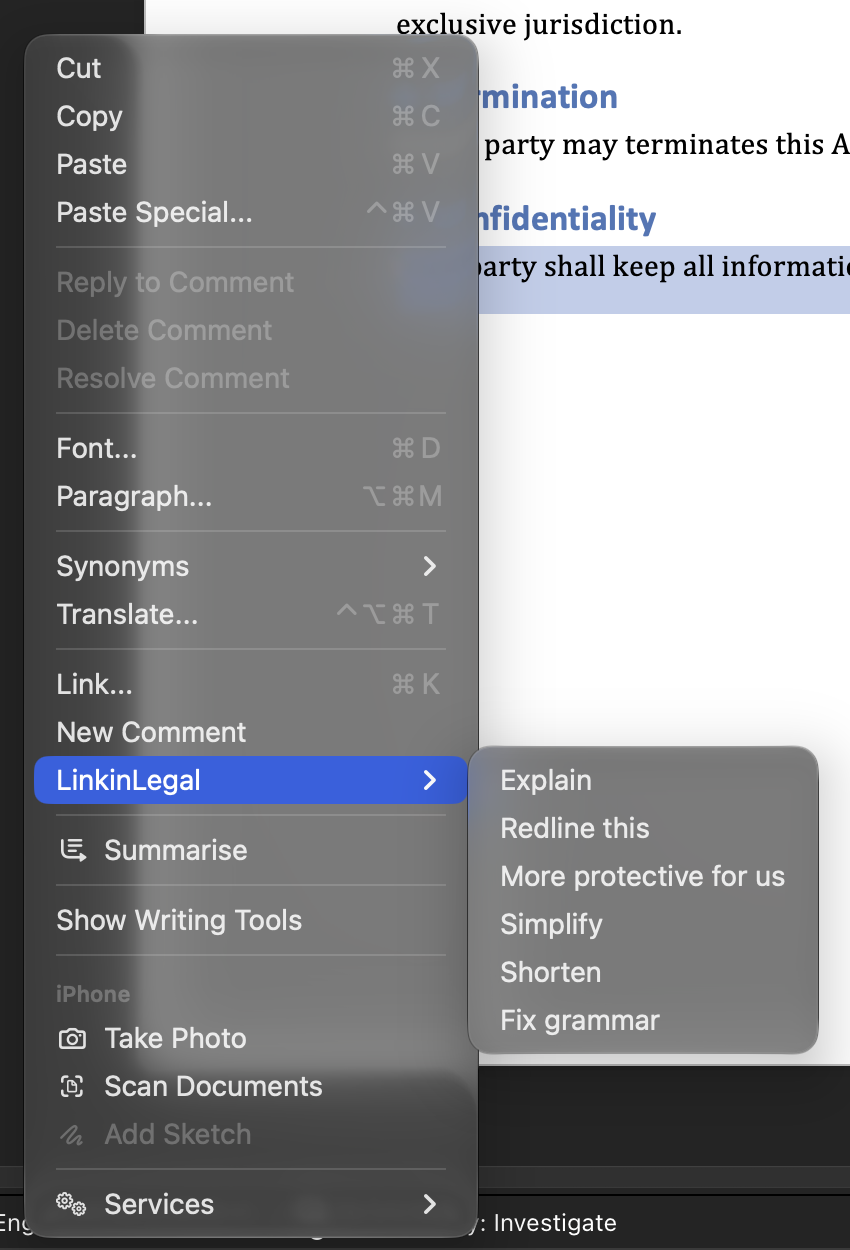
Select text in Word. The bar above the message box shows six buttons:
| Button | What the assistant does |
|---|---|
| Explain | Explains the selected text in plain English |
| Redline this | Suggests better wording |
| More protective | Redrafts the text in your favour |
| Simplify | Redrafts the text in plain language, with the same legal effect |
| Shorten | Uses fewer words, with the same legal effect |
| Fix grammar | Fixes grammar, spelling and punctuation only |

All but Explain give you a Suggested Redlines card for that text. They need a Redline chat. If the open chat is empty, it switches to Redline. If it already has messages in another mode, the add-in starts a new Redline chat.
The same six actions are in Word's right-click menu, under LinkinLegal. Right-click the selected text and choose an action. The pane opens and the assistant starts work.
Out-of-date suggestions
A suggestion can stop matching the document, for example if you edit that paragraph. The card then marks it as out of date. Ask the assistant to refresh it.
If a newer suggestion replaces an older one, the older one is marked as superseded. Apply the newer one.
Address comments
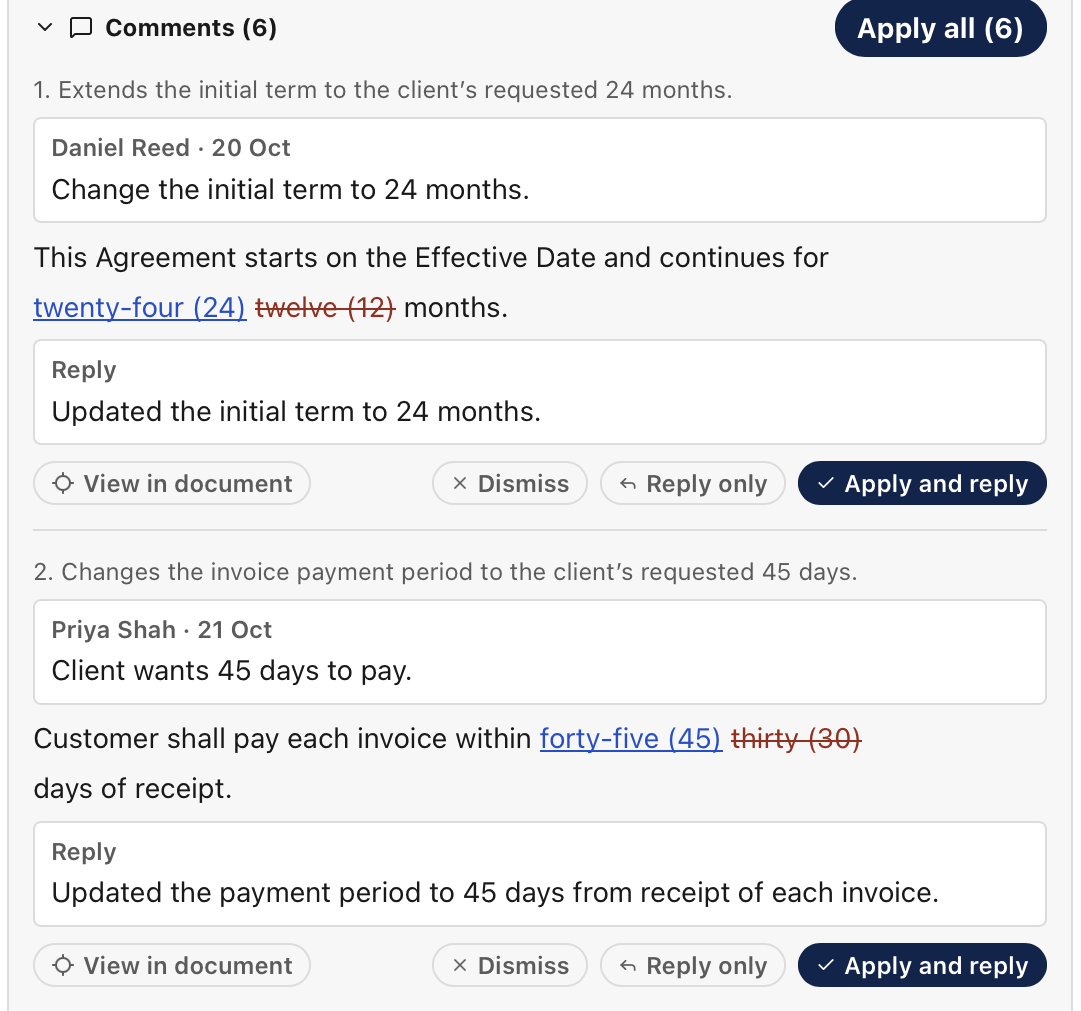
If the document has open Word comments, the assistant can propose an edit and a reply for each one.
- Start a new chat and choose Redline.
- Click Address comments.
- Wait for the Comments card.
The card has one row for each open comment. A row shows the comment as it is in Word, the proposed edit and the proposed reply. If a comment needs no edit, the row shows the reply only.
| Button | What it does |
|---|---|
| Apply and reply | Puts the edit in Word as a tracked change and posts the reply |
| Reply only | Posts the reply and does not make the edit |
| Reply | Posts the reply on a row with no edit |
| Resolve | Marks the comment as resolved in Word |
| Undo | Takes back the edit and deletes the reply |
| Undo reply | Deletes a reply posted with Reply only |
Nothing changes in Word until you click. Replies show under your name in Word.
Replies follow the audience. If every row answers a comment, the card shows Reply as with Internal and Counterparty. Otherwise, replies follow Comment on apply.
- Internal posts the reply with an
[Internal]prefix. None does the same, because a reply is something you click to post. Remove Internal Comments removes these replies. - Counterparty posts a neutral reply for the other side. If the assistant has none for a comment, that row posts no reply: Apply makes the edit only, and Apply all skips a row with no edit.
The Reply box shows the exact text that will post. A posted reply keeps its text if you change the audience later.
The assistant does not read comments or replies that start with [Internal]. It cannot use them in an edit or a reply.
Apply all applies every row but does not resolve any comment. Undo does not reopen a resolved comment. To reopen one, use Word's comment menu.
If a comment is deleted from the document, its row says so. You cannot reply to it, and Apply all skips that row.
The button shows only in Word versions that can read comments.
Ignore existing redlines
If the document already has tracked changes, you can tick Ignore existing redlines when you choose Redline. The assistant then reviews the clean text as if all tracked changes were accepted.
To go through tracked changes one by one, use Review mode.