

Review mode
Go through the tracked changes in a Word document and decide what to do with each one. See how Review differs from a playbook.
Review mode reads the tracked changes in your Word document. It gives you one row per change, with a recommendation, the effect on your client and a reason.
Nothing changes in Word until you click a button.
Use Review when a draft comes back with the other side's markup. To check a contract against your firm's rules, use a playbook. See Review or playbook.
Run a review
Choose Review
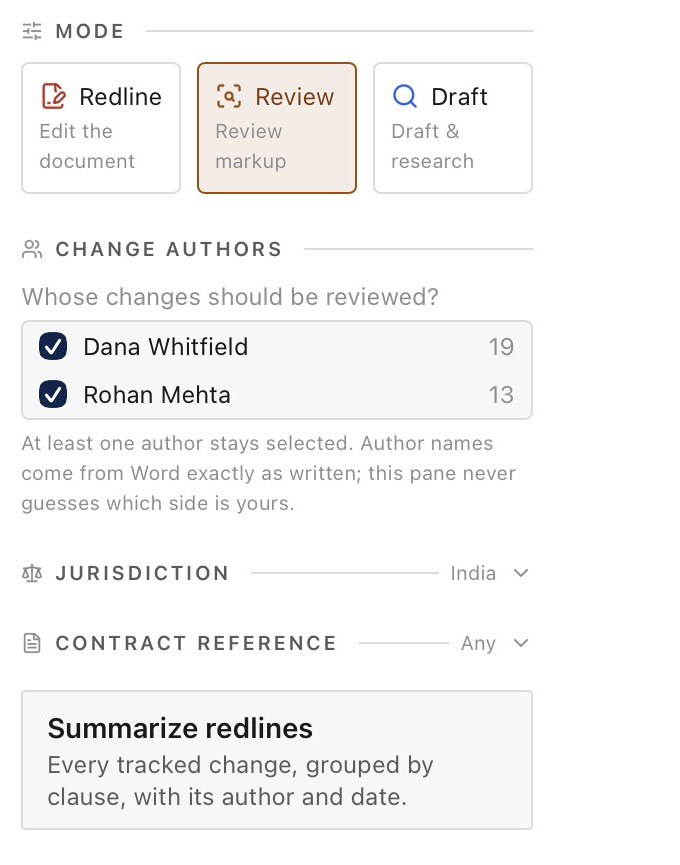
Start a new chat. Under Mode, choose Review. The mode is fixed once the chat starts.
Choose whose changes to review
Under Change authors, tick the authors whose changes you want reviewed. The list shows each author and how many changes they made. At least one author stays selected.
Author names come from Word exactly as written. The pane never guesses which side is yours, so choose by name.
Say who you act for
Name your client in your message. For example:
We act for the Buyer. Review the tracked changes.
If you do not say who you act for, the assistant asks with a Question card before it recommends anything. Click the party, or type it under Other. It asks once per chat.
The assistant reviews every author you ticked. It does not ask again about authors.
You can state your own position in the same message. Your instruction overrides the built-in guide.
Wait for the card
The assistant reads each change and the clauses around it. A long review can take several minutes.
The result is a Tracked change review card. The top of the card counts the recommendations.
Work through the rows
Read each row, then click the button you want. You can act on the rows in any order.
Read a row
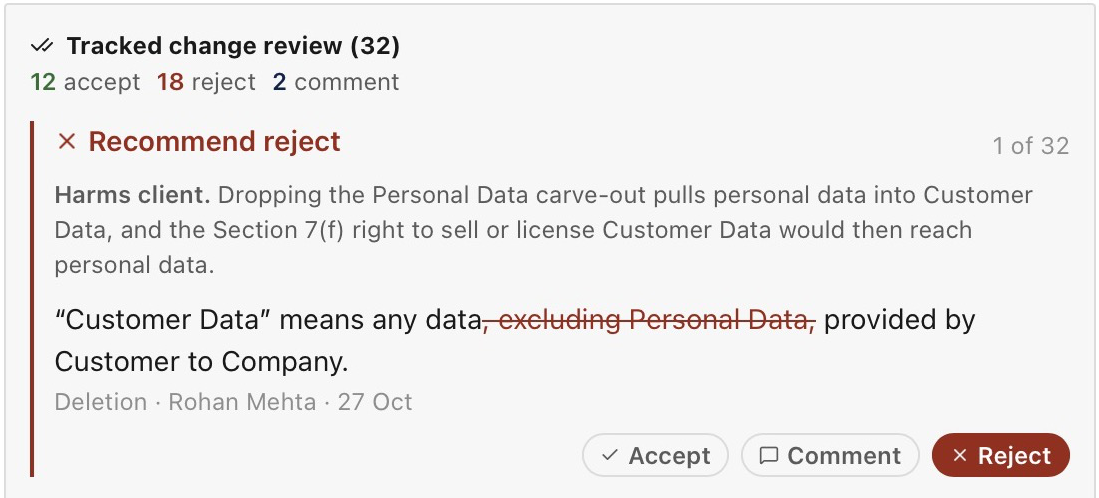
Each row shows:
- The recommendation: Recommend accept, Recommend reject, Recommend counter or Recommend comment.
- The effect on your client: Helps client, Harms client or Neutral.
- The reason for the recommendation.
- The change: the changed words in their sentence, with the type of change, the date and, if there are several authors, the author.
- The suggested text: Proposed wording on a counter row, or Comment to add on a comment row.
The assistant judges each change from your client's side. It uses a built-in guide of default positions for common clauses, such as liability caps, indemnities, payment and termination.
If the assistant cannot tell which way a change cuts, it marks the change Neutral and recommends a comment.
One replacement, two rows
Word records a replacement as a deletion and an insertion. So a replacement can show as two rows, one for each.
Decide the two rows together. If you accept the insertion and reject the deletion, the old words and the new words both stay in the text.
Act on a change
Each row has Accept, Reject and Comment. A row with proposed wording also has Counter. The recommended button is the solid one.
| Button | What it does in Word |
|---|---|
| Accept | Keeps the change. |
| Reject | Removes the change and restores the old wording. Rejecting a deletion puts the words back. |
| Comment | Adds the suggested text as a Word comment at once. The change stays in the document. |
| Counter | Starts a staged flow. See Counter a change. |
When you finish with a row, it closes and shows the result, such as Accepted or Comment added.
You cannot edit a comment before it goes in. If the row has no suggested text, the comment uses the row's reason. To change the text, edit the comment in Word afterwards.
The comment gets an [Internal] prefix, unless Comment on each applied change in Settings is Counterparty and the row has suggested text.
After a comment, the row is closed but the change is still open. Accept or reject that change in Word.
Counter a change
Counter replaces the other side's insertion with the proposed wording. You cannot edit that wording on the row.
- Click Counter. The pane stages the wording, and Word does not change yet. You can still click Cancel.
- Click Reject original. Word removes the other side's insertion. There is no Cancel after this step.
- Click Apply counter. The proposed wording goes in as a tracked change.
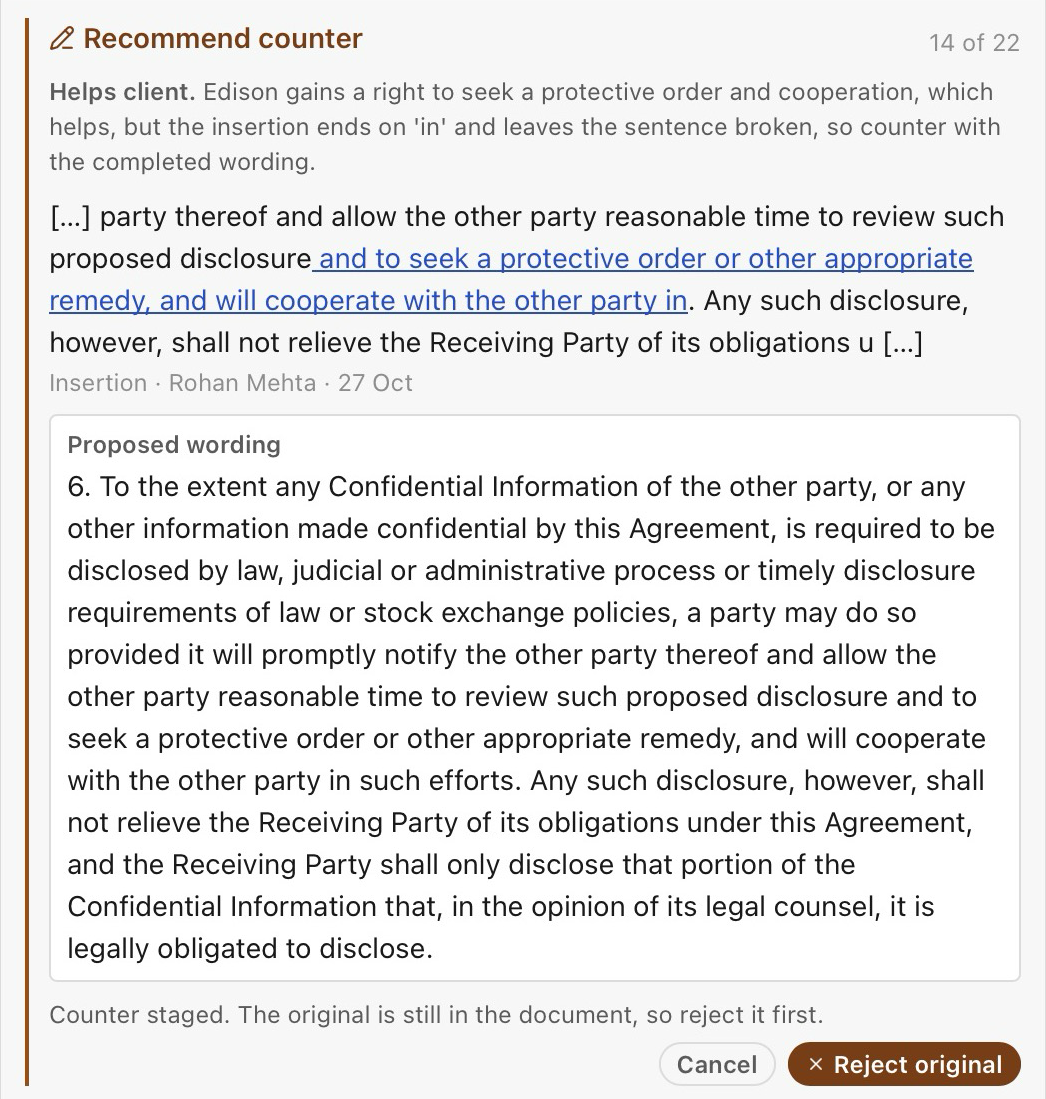
Apply counter also adds the row's Comment to add text, unless Comment on each applied change in Settings is None.
Counter has limits:
- It works only on an insertion that is the only tracked change in its paragraph.
- It does not work on a deletion or a formatting change. Reject the change first, then ask the assistant for replacement wording.
- It does not work on a replacement, because a replacement is two changes in one paragraph. Accept, reject or comment instead.
- If Word did not report the full paragraph, the pane shows an error and cannot counter the change. Accept, reject or comment instead.
If the paragraph changes during these steps, the pane stops and does not apply the wording. Ask the assistant for fresh wording. If you already clicked Reject original, the original stays rejected.
Summarize redlines
Open an empty chat in Review mode and click Summarize redlines. The assistant lists every tracked change, grouped by clause.
Each entry gives the clause number, author, date, what changed and why it matters. The summary does not change the document.
Ignore existing redlines
Ignore existing redlines belongs to Redline mode, not Review. It reviews the clean text as if all tracked changes were accepted.
Review always works from the tracked changes, so the option does not appear there.
Limits and warnings
- A change moves during the review. The whole card can go read-only with a warning. The assistant then reads the changes again and sends a new card.
- You edit the document after the card appears. A button can show an error instead of acting. Ask the assistant to read the changes again.
- More than 80 changes. The assistant reads the first 80 changes by the selected authors. Select fewer authors, or ask it to review one part of the document.
- Identical changes. Word cannot tell two changes apart if they have the same author, date, type, text and paragraph. They get no row, and the assistant says so above the card. Accept or reject one of them in Word, then ask for the review again.
- Missing deleted text. Word does not always report the deleted words. The row tells you when this happens. Check the words in the document.
- Formatting changes. Word does not report the formatting before and after the change. Check it in the document.
- Your version of Word. If your version of Word cannot read tracked changes, the pane says so and no review runs. Review mode has been tested in Word desktop.
Review or playbook
Review and playbooks both check a contract, but they answer different questions.
| Review | Playbook | |
|---|---|---|
| Question | What should I do with each change the other side made? | Does this document follow our rules? |
| Starts from | Tracked changes in the document | Rules you saved |
| What it reads | Each change and the clauses around it | The whole document, or only counterparty changes if you pick Counterparty changes only |
| Judged against | Your client's position, with a built-in guide | The rules you selected |
| Result | One row per change | One finding per rule: Pass, Flagged or Not found |
| What you do | Act on the existing change | Review a flag or a proposed edit, if the rule gives one |
| Use it when | A draft comes back with the other side's markup | You want to check any contract against firm standards, even one with no tracked changes |
Review does not use your saved playbooks. To apply one, see Playbooks.
A playbook set to Counterparty changes only still reports per rule. A change that no rule covers gets no finding. Review gives every change a row, within the limits above.
With that setting, the assistant asks which authors to check if the document has more than one author.
Run review is not Review mode
Run review is the button on a playbook. It starts a Redline chat that checks the document against that playbook. It does not open Review mode.