

Settings
Manage your account, appearance, redline comments, saved prompts and standing instructions.
Open Settings from the menu to change these options. Click Save to keep your changes, or Discard to drop them.
Each section folds. A closed section shows its current value, such as Medium · Menu. Click the heading to open it. The bar at the bottom says All changes saved or Unsaved changes.
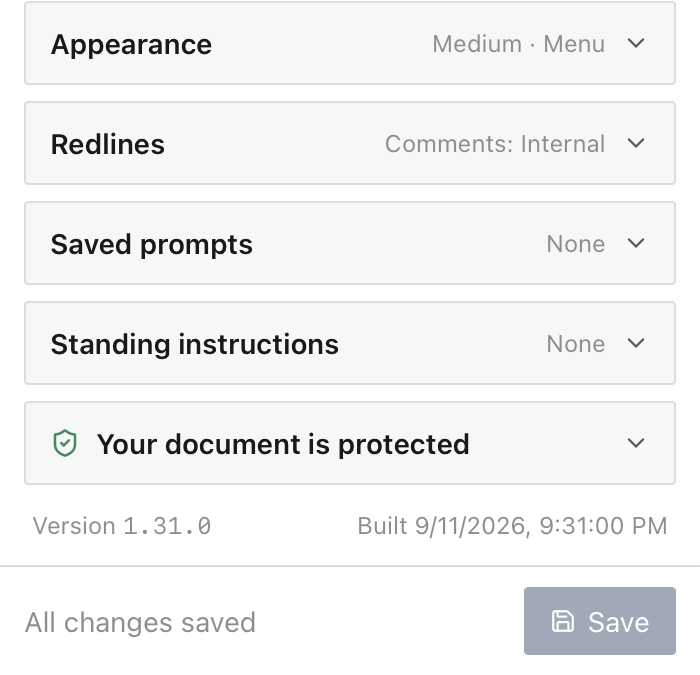
Account
This section shows who is signed in. Click Sign out to sign out.
Appearance
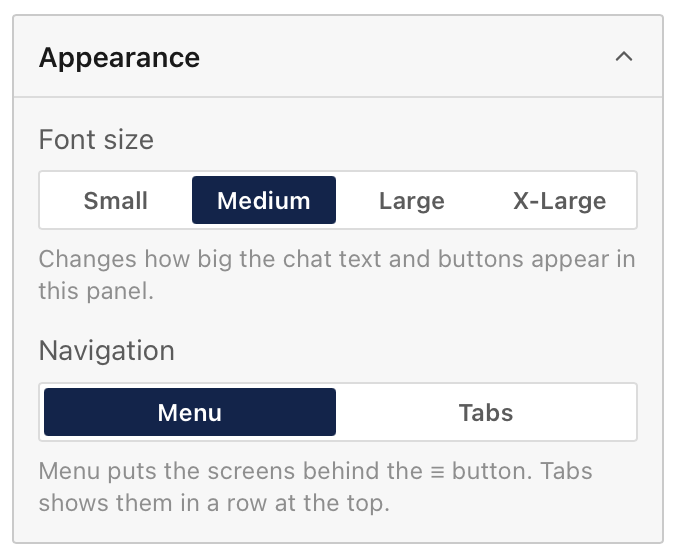
Font size sets how big the chat text and buttons are in the pane. Choose Small, Medium, Large or X-Large.
Navigation sets how you move between screens:
- Menu shows a ≡ button at the top left. It opens a list of the screens. This is the default.
- Tabs shows a row of tabs at the top of the pane.
Redlines
Comment on each applied change sets the Word comment that Apply adds to the paragraph:
| Option | What Apply adds |
|---|---|
| None | No comment. The Comment button in Review mode still adds one |
| Internal | The reason for the edit, with an [Internal] prefix. The default |
| Counterparty | A neutral comment for the other side |
Each redline card can change this for that card. Undoing a redline removes its comment.
Replies on a Comments card follow the same choice. With None, a reply still gets the [Internal] prefix, because you click to post it.
It also applies to Apply counter in Review mode.
Saved prompts
A saved prompt is a message you reuse. Type / in the chat box to pick one. See Use a saved prompt.
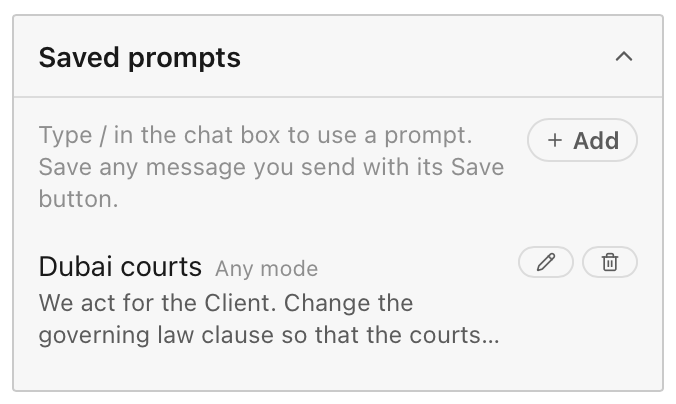
This section lists your prompts. Click Add to write a new one, with a Name and the prompt text. Hold the pointer over a prompt to see Edit and Delete.
You can also save a message from a chat. Under each message you sent, click Save.
A prompt can be for Any mode, or for Redline, Review or Draft only. The picker shows it in the matching chats.
Standing instructions
Standing instructions go with every chat you start, in every mode. You do not repeat them in each message.
| Field | What to put in it |
|---|---|
| How we negotiate | Your firm's usual positions. For example: "We usually act for the customer. Cap liability at 12 months' fees." |
| My drafting style | How you want text written. For example: "Short sentences. British spelling. No Latin." |
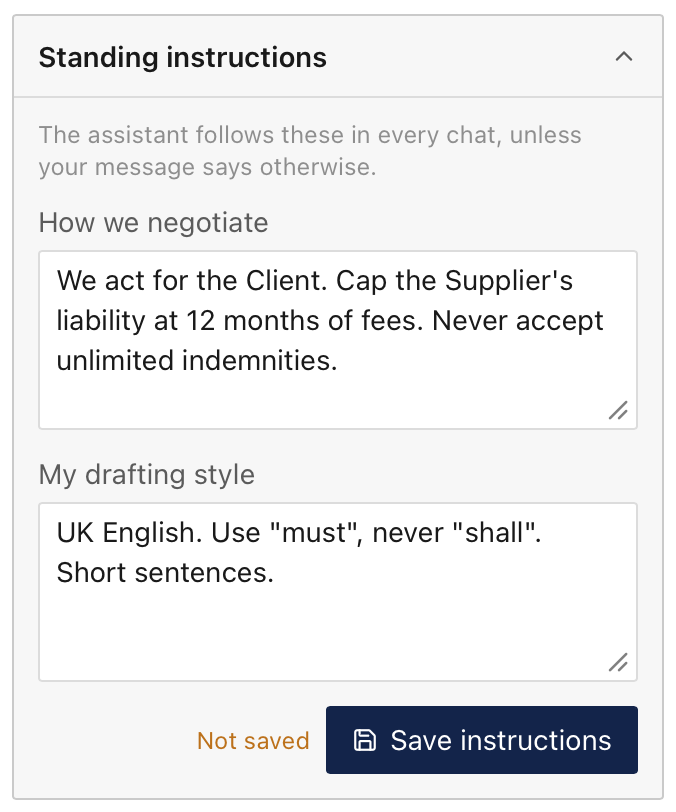
Each field takes up to 2,000 characters. Click Save instructions to keep them. Not saved shows next to the button if you have changes you have not saved.
An instruction in your message comes first. Standing instructions never widen the scope of the edits you asked for.
Your document is protected
The assistant can read your document and any attached files. It cannot change or delete anything on its own. Every edit is suggested for your review, and nothing is applied until you accept it.
The bottom of the tab shows the add-in version. Have it ready if you contact support.